


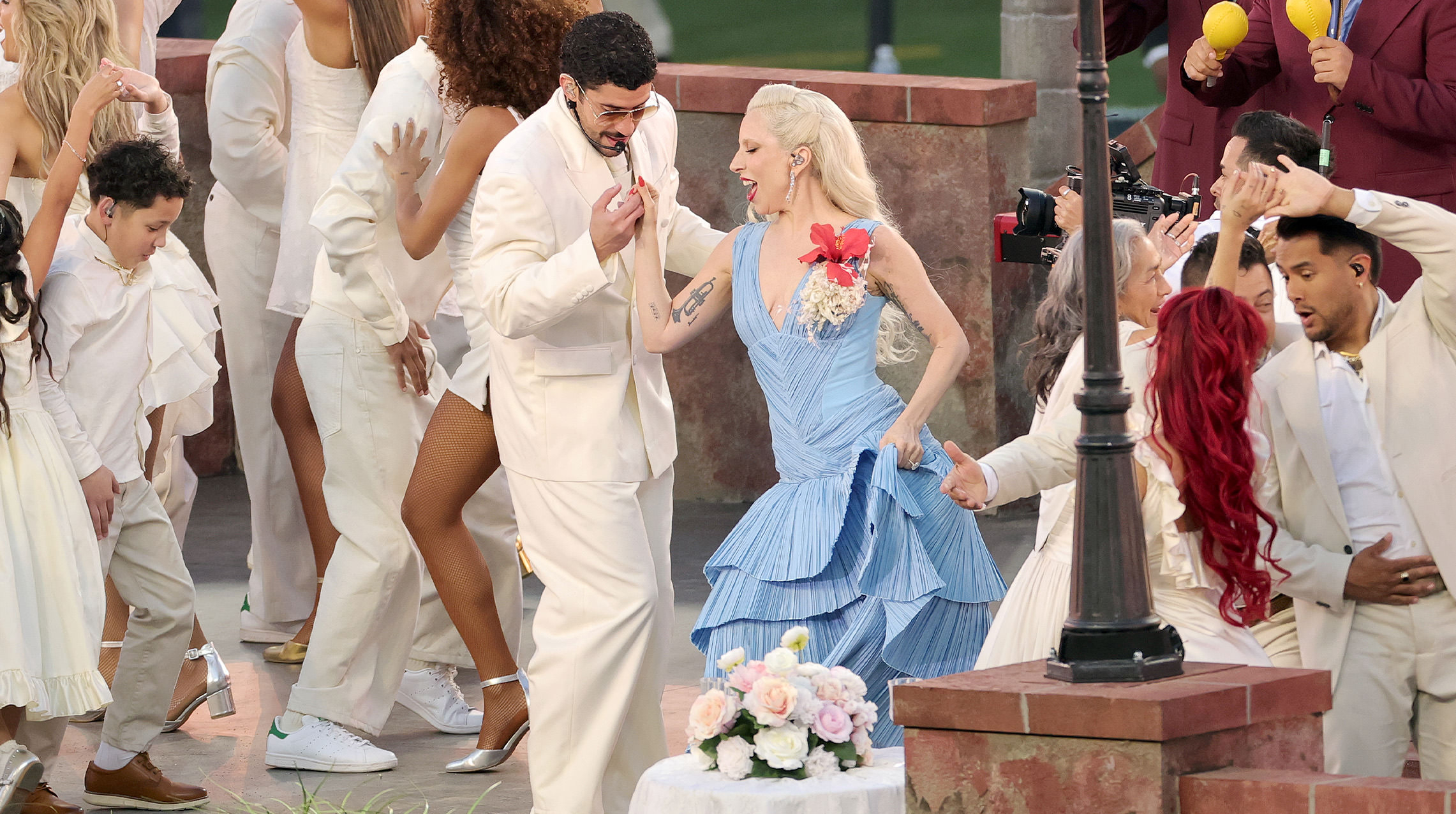

Exactly one week after running into each other at the 68th Annual Grammy Awards, Lady Gaga made a surprise appearance at Bad Bunny's Super Bowl LX halftime performance.
Gaga looked beautiful as she performed a special mariachi version of "Die With a Smile." It was the first time a performance of the song was televised.
Rumors swirled of Gaga's appearance alongside Bad Bunny in the week prior to the Super Bowl, but nothing was confirmed until she stepped on the stage at Levi's Stadium in Santa Clara, California.
Watch Bad Bunny's full performance here. Gaga appears just after 5:20.
The artists have expressed mutual admiration for one another in the past years, with Gaga even making a special appearance on "Saturday Night Live" in 2023 to introduce one of Bad Bunny's performances.
Gaga last performed at the Super Bowl nine years ago, when she performed a string of her greatest hits including "Poker Face," "Born This Way" and more. Last year, she filmed a special tribute segment in which she performed "Hold My Hand" on Bourbon Street in New Orleans, Louisiana, that aired before Super Bowl LIX. She'd later win an Emmy for Outstanding Music Direction at the 46th Annual Sports Emmy Awards for the segment.
During this year's Super Bowl, Gaga starred in two commercials: She reimagined Mr. Rogers' "Won't You Be My Neighbor" in an ad for Rocket, and she appeared alongside the iconic Jigglypuff in a commercial for Pokémon's 30th anniversary.
-
 2
2